
How to Reduce PDF File Size Without Losing Quality
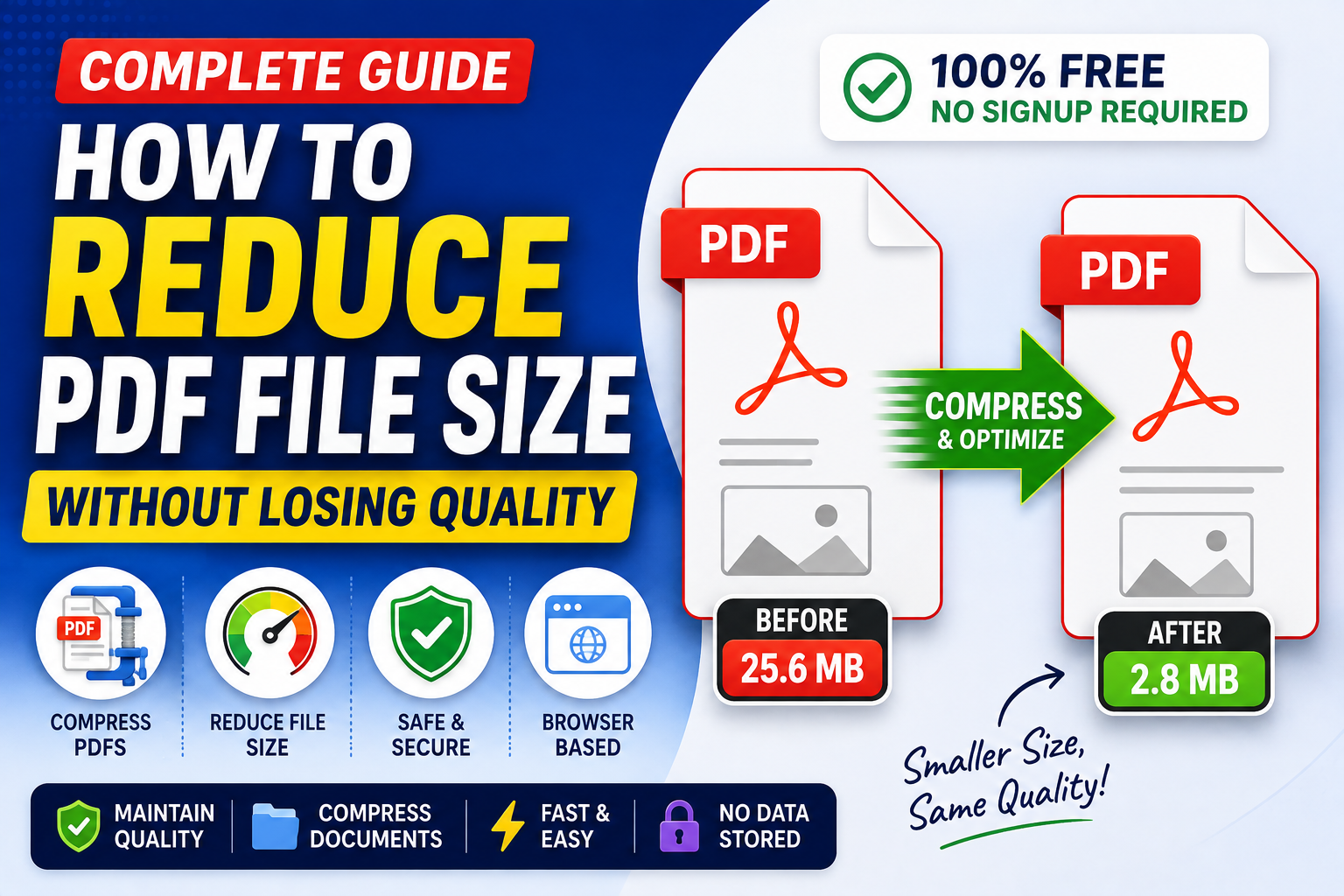
Large PDF files can become a problem surprisingly quickly.
A document that looks perfectly normal on your computer might be too large to upload to a website, attach to an email, send through a messaging app, or store efficiently.
The good news is that you usually don't need to recreate the document from scratch.
With the right PDF compression techniques, you can reduce PDF file size while keeping the document readable and maintaining a good level of image and text quality.
In this guide, we'll explain why PDFs become large, how to compress PDF files, and how to choose the right PDF compressor for your needs.
Why Are Some PDF Files So Large?
Not every PDF is created the same way.
A simple text document may only be a few hundred kilobytes, while a PDF containing high-resolution photographs, scanned pages, embedded fonts, and graphics can easily become several megabytes.
Common reasons for large PDF files include:
- High-resolution images
- Scanned documents
- Uncompressed photographs
- Embedded fonts
- Large graphics
- Duplicate resources
- Excessive metadata
- Multiple pages containing images
Understanding what makes a PDF large is the first step toward effective PDF optimization.
What Does PDF Compression Actually Do?
PDF compression reduces unnecessary data inside a document so that the resulting file takes up less storage space.
Depending on the compression method, a tool may:
- Reduce image resolution
- Compress embedded images
- Remove unnecessary metadata
- Optimize fonts
- Remove redundant document data
- Reorganize internal PDF resources
The goal isn't simply to make the smallest possible file.
The goal is to find a balance between file size and image quality.
How to Reduce PDF File Size
The easiest approach for most users is to use an online compression tool.
A typical workflow looks like this:
- Open a PDF compressor.
- Upload your PDF.
- Select the desired compression level.
- Start the compression process.
- Download the optimized PDF.
- Check the final document for quality.
This makes it possible to reduce PDF size online without installing complicated desktop software.
Use a PDF Compressor
A dedicated PDF compressor is usually the fastest option for reducing a large document.
Modern compression tools can process PDFs directly in your browser, making them useful for students, businesses, developers, and anyone who works with documents regularly.
A good free PDF compressor should make the process straightforward:
- Upload the document
- Choose compression settings
- Compress the file
- Download the result
You should always compare the original and compressed files before deleting the original.
Compress Images Inside Your PDF
Images are often responsible for most of a PDF's file size.
For example, a scanned document containing dozens of high-resolution photographs can become extremely large.
Reducing unnecessary image resolution can significantly shrink the document while keeping it visually acceptable.
This is especially useful for:
- Scanned documents
- Reports
- Presentations
- Portfolios
- Product catalogs
- Educational materials
If the document is intended for screen viewing rather than professional printing, extremely high image resolution is often unnecessary.
Shrink PDF Files for Email Attachments
Email services commonly impose attachment size limits.
If your PDF is too large to send, you can shrink PDF files before attaching them.
Instead of splitting one document into several attachments, compression can sometimes reduce the file enough to send it normally.
This is particularly useful for:
- Invoices
- Contracts
- Resumes
- Reports
- Applications
- Business documents
Always open the compressed file before sending it to make sure nothing important was affected.
Reduce PDF Size Online
One of the biggest advantages of an online PDF compressor is convenience.
You don't have to install desktop software or learn complicated PDF editing applications.
A browser-based compressor can work from:
- Windows
- macOS
- Linux
- Android
- iPhone
- Tablets
As long as you have a modern browser, you can usually reduce PDF size online within a few steps.
Does Compression Reduce PDF Quality?
It can, but it doesn't always have to be noticeable.
The amount of quality loss depends on the compression method and the contents of the document.
There are generally two approaches:
Lossless Compression
Lossless compression reduces unnecessary data while preserving the original information.
This is useful when maintaining exact document quality is important.
Lossy Compression
Lossy compression can reduce image quality or resolution to achieve a much smaller file size.
This can be useful for documents intended mainly for online viewing.
The correct choice depends on how you plan to use the PDF.
How to Compress Documents Without Overdoing It
A common mistake is choosing the strongest compression setting immediately.
That's not always necessary.
For documents containing mostly text, moderate compression may already produce a significant reduction.
For image-heavy PDFs, stronger compression may be useful, but you should inspect the images afterward.
A practical workflow is:
- Start with moderate compression.
- Check the resulting file size.
- Open several pages.
- Inspect images and text.
- Increase compression only if necessary.
This approach helps maintain a good balance between size and quality.
PDF Compression for Scanned Documents
Scanned PDFs can be particularly large because every page may essentially be a high-resolution image.
If a 50-page document is scanned at unnecessarily high resolution, the resulting file can become much larger than expected.
For online sharing, reducing scan resolution and compressing the images can make a dramatic difference.
However, avoid excessive compression when the document contains:
- Small text
- Signatures
- Technical diagrams
- Legal documents
- Detailed charts
These elements may become difficult to read if image quality is reduced too aggressively.
PDF Optimization for Websites
Website owners should pay attention to PDF file sizes too.
Large downloadable files can consume more bandwidth and take longer for visitors to download.
PDF optimization can improve the overall user experience by reducing unnecessary file size.
Before uploading a PDF to a website, consider:
- Compressing large images
- Removing unnecessary pages
- Optimizing the document
- Checking the final file size
- Testing the download speed
Smaller files are especially useful for mobile users and visitors with slower connections.
PDF Tools for Everyday Document Management
A good collection of PDF tools can simplify many document-related tasks.
Depending on your workflow, you may need tools for:
- Compressing PDFs
- Merging documents
- Converting files
- Editing PDFs
- Splitting documents
- Organizing pages
Instead of installing separate desktop applications for every task, browser-based utilities can handle many common operations.
This makes document management faster and more convenient.
When Should You Use a PDF Editor?
A PDF editor is useful when you need to modify the actual contents of a document.
For example, you might need to:
- Add text
- Add annotations
- Sign a document
- Rearrange pages
- Insert images
- Remove pages
Compression is different.
A PDF compressor focuses primarily on reducing file size, while an editor is designed for modifying the document.
Using the right document tools for the job avoids unnecessary processing.
PDF Compression in a Typical Workflow
A practical PDF workflow might look like this:
Create → Edit → Merge → Compress → Review → Share
For example, you could create several documents, merge them into one PDF, compress the final file, and then upload it to a website or send it by email.
This is much more efficient than repeatedly editing and exporting the same document.
Browser-Based Utilities vs Desktop Software
Traditional PDF software can be powerful, but it isn't always necessary for simple tasks.
For occasional compression, browser based utilities can be more convenient because they don't require installation.
Advantages include:
- No software installation
- Easy access from different devices
- Simple interfaces
- Faster setup
- Useful for occasional tasks
For people who only need basic PDF operations, online tools can be a practical PDF software alternative.
How Much Can You Reduce a PDF?
There is no universal percentage.
The final file size depends heavily on the original document.
A text-heavy PDF may not become dramatically smaller because text is already relatively efficient.
An image-heavy PDF, on the other hand, may see a much larger reduction.
For this reason, don't judge a compressor only by a claimed percentage reduction. Always check the actual output quality and file size.
Best Practices for PDF Compression
Follow these PDF productivity tips when reducing document size:
- Keep an original backup.
- Use moderate compression first.
- Check images after compression.
- Make sure text remains readable.
- Avoid repeatedly compressing the same file.
- Remove unnecessary pages before compression.
- Choose the appropriate quality level for your purpose.
For documents that need to be printed professionally, use more conservative compression settings.
For documents intended only for online viewing, stronger compression may be acceptable.
Final Thoughts
Learning how to reduce PDF file size doesn't require complicated software.
For most everyday documents, a reliable PDF compressor can significantly reduce file size with only a few clicks.
Whether you're trying to compress documents for email, optimize files for a website, or improve your overall document management, choosing the right compression level is more important than simply choosing the strongest setting.
If you're looking for a free online tools platform with practical PDF utility options, TrendPro provides browser-based tools designed for everyday workflows. You can use tools such as a PDF Compressor, PDF Merger, and PDF to Word converter without installing traditional desktop software.
For anyone who regularly works with documents, combining PDF compression with other document tools can make your workflow faster, simpler, and more efficient.