
Markdown Editor Guide: Write Better Documentation Faster
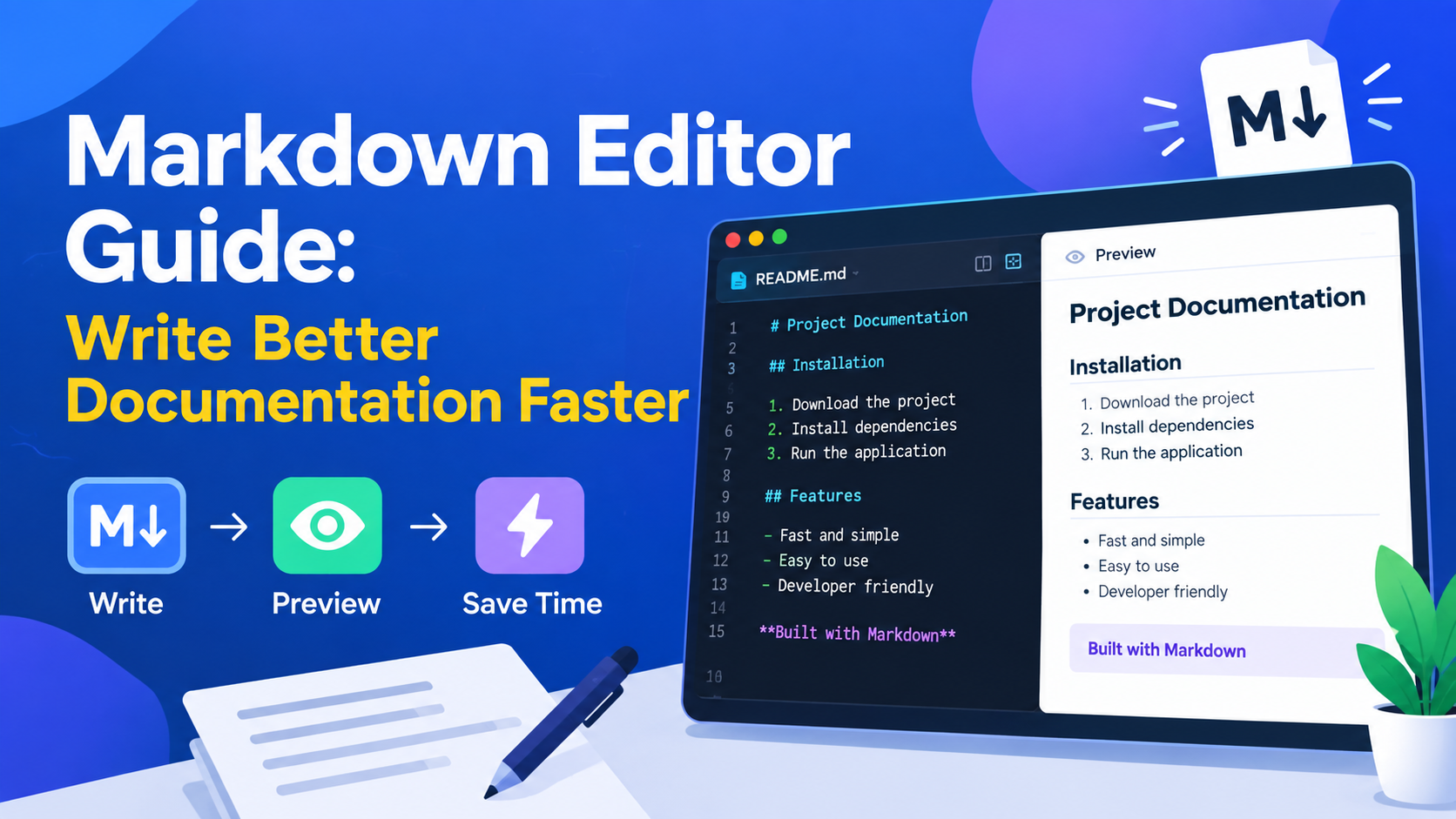
Writing documentation does not always require a complicated word processor or a full desktop publishing application.
For developers, technical writers, students, and content creators, Markdown provides a lightweight way to format text using simple characters. A Markdown editor makes the process even easier by providing a writing environment, formatting assistance, and often a live preview of the rendered result.
Markdown is widely used for README files, project documentation, technical notes, blog content, changelogs, knowledge bases, and other forms of structured writing.
In this Markdown guide, we will explain what Markdown is, how Markdown syntax works, how to use a Markdown editor, and how Markdown online tools can improve documentation and developer productivity.
What Is Markdown?
Markdown is a lightweight markup language used to format plain text.
Instead of clicking formatting buttons, you use simple characters to indicate structure.
For example, a Markdown heading can be written as:
# Main Heading
A second-level heading can be written as:
## Section Heading
Bold text can be created with:
**bold text**
And a link can be written using Markdown link syntax.
This makes Markdown easy to write, read, edit, and store as plain text.
What Is a Markdown Editor?
A Markdown editor is a text editor designed specifically for creating and editing Markdown documents.
Depending on the application, a Markdown editor may provide features such as:
- Markdown syntax highlighting.
- Live preview.
- Side-by-side editing.
- Keyboard shortcuts.
- File management.
- Export options.
- Word counting.
- Table support.
- Code block support.
- HTML preview.
- Git integration.
- Automatic formatting.
Some editors are desktop applications, while others are free web applications that work directly inside a browser.
For simple documentation tasks, an online editor can eliminate the need to install additional software.
Why Use Markdown?
Markdown is popular because it provides a balance between plain text and formatted documents.
A Markdown file remains readable even when viewed without rendering.
For example:
# Installation

Download the project and install its dependencies.
The structure is obvious even before Markdown is converted into HTML or another output format.
This makes Markdown particularly useful for developers and technical writers.
Markdown vs Traditional Word Processors
Traditional word processors usually rely on visual formatting.
You select text and click buttons for:
- Bold.
- Italics.
- Headings.
- Lists.
- Links.
- Alignment.
Markdown uses characters and syntax instead.
For example:
**Important information**
The two approaches have different strengths.
A word processor can be useful for highly visual documents, while Markdown is particularly convenient for technical documentation, source-controlled files, and developer workflows.
Basic Markdown Syntax
Learning basic Markdown syntax does not take long.
The most commonly used elements are headings, paragraphs, emphasis, lists, links, images, blockquotes, tables, and code.
Markdown Headings
Headings are created using the hash symbol.
For example:
# Heading 1

## Heading 2

### Heading 3
The number of # characters determines the heading level.
A typical documentation structure might look like:
# Project Documentation

## Installation

## Configuration

## Usage

### Advanced Usage
When Markdown is rendered as HTML, these generally correspond to heading elements such as H1, H2, and H3.
Use headings to create a logical document hierarchy rather than simply choosing them based on visual size.
Paragraphs
Normal text can be written as ordinary paragraphs.
For example:
Markdown makes technical documentation easier to write because formatting can be represented using simple text characters.
A blank line is generally used to separate paragraphs.
Bold Text
Use two asterisks around text to create strong emphasis:
**This text is bold.**
Depending on the Markdown implementation, double underscores can also be used:
__This text is bold.__
For portability and readability, many developers prefer the asterisk syntax.
Italic Text
Use one asterisk around text:
*This text is italic.*
Underscores can also be used:
_This text is italic._
Bold and Italic Text
You can combine the two:
***This text is bold and italic.***
The exact rendering can depend on the Markdown parser being used.
Markdown Lists
Markdown supports unordered and ordered lists.
Unordered Lists
You can use hyphens:
- First item
- Second item
- Third item
You can also use asterisks or plus signs in many Markdown implementations.
Ordered Lists
Use numbers:
1. Install the application.
2. Open the configuration file.
3. Start the project.
Lists are particularly useful for installation instructions and step-by-step documentation.
Markdown Links
Links generally use this structure:
[Link text](https://example.com)
For example:
[Visit Example](https://example.com)
Markdown links are frequently used in README files and documentation to connect related resources.
Markdown Images
Images use a syntax similar to links:

The text inside the square brackets is the alternative text.
Writing descriptive alternative text can improve accessibility because screen readers can use it to describe images to users.
Blockquotes
A blockquote starts with a greater-than symbol:
> This is a quoted piece of text.
Blockquotes can be useful for:
- Important notes.
- Quotes.
- Warnings.
- Referenced information.
- Documentation callouts.
Some Markdown implementations provide additional syntax for styled callouts, but these features are usually extensions rather than universal Markdown.
Inline Code
Use backticks around short code references:
Use the `npm install` command to install dependencies.
Inline code is particularly useful in developer documentation.
It allows technical terms, commands, filenames, and code identifiers to stand out from normal prose.
Code Blocks
Markdown also supports larger blocks of code.
A common Markdown implementation uses fenced code blocks with three backticks.
For example, Markdown source can contain a fenced block with a language identifier such as javascript.
When Markdown is stored inside a TypeScript template literal, literal triple-backtick fences can conflict with the surrounding template literal syntax. For that reason, this article uses indented examples where appropriate.
The exact syntax supported for fenced code blocks can vary depending on the Markdown parser.
Markdown Tables
Many Markdown implementations support tables.
A simple table can be represented using:
| Name | Type |
| --- | --- |
| JSON | Data |
| Markdown | Text |
The rendered result becomes a table with columns and rows.
Tables are particularly useful for:
- API documentation.
- Configuration references.
- Feature comparisons.
- Command references.
- Data dictionaries.
However, table syntax is not part of the original core Markdown specification and is commonly provided through extensions such as GitHub Flavored Markdown.
Horizontal Rules
A horizontal rule can be created using three or more hyphens in many Markdown implementations:
---
This can be useful for visually separating sections.
Markdown Checklists
Many modern Markdown implementations support task lists.
For example:
- [ ] Write documentation
- [ ] Test the example
- [x] Publish the guide
This feature is commonly available in GitHub Flavored Markdown and other extended Markdown implementations.
It is useful for project documentation and task tracking.
What Is Markdown Preview?
A Markdown preview shows what your Markdown will look like after rendering.
Instead of seeing only:
## Installation
the preview displays the formatted heading.
A live Markdown preview can make documentation easier to edit because you can see the rendered result while writing.
Many editors use a split-screen layout:
Markdown Source | Rendered Preview
This allows you to edit the source while immediately checking the result.
Why Markdown Preview Matters
A preview helps identify formatting problems before publishing.
For example, you might accidentally:
- Forget a closing link parenthesis.
- Use incorrect heading syntax.
- Create an improperly formatted list.
- Break a table.
- Forget alternative text for an image.
- Add unwanted spacing.
- Misformat inline code.
A live preview makes these issues easier to spot.
Markdown Online: Using Markdown in Your Browser
Markdown online tools allow you to write and preview Markdown directly from a web browser.
This can be useful when you:
- Do not want to install software.
- Need a quick documentation editor.
- Are using a different computer.
- Work across multiple operating systems.
- Want to test Markdown syntax.
- Need a temporary Markdown workspace.
Browser-based tools are particularly convenient for developers who regularly switch between different environments.
Markdown for Developer Documentation
Developers frequently use Markdown for documentation because it is simple, portable, and compatible with many development workflows.
Common uses include:
- README files.
- Installation guides.
- API documentation.
- Changelogs.
- Contribution guidelines.
- Troubleshooting guides.
- Project notes.
- Technical tutorials.
A repository can store Markdown files alongside source code, allowing documentation to be version-controlled together with the project.
Markdown and GitHub
Markdown is strongly associated with software development platforms such as GitHub.
A repository's README file is commonly written in Markdown.
Developers can use Markdown to explain:
- What a project does.
- How to install it.
- How to configure it.
- How to use it.
- How to contribute.
- Where to report issues.
GitHub also supports GitHub Flavored Markdown, commonly abbreviated as GFM.
GFM adds features such as tables, task lists, and other extensions beyond basic Markdown.
Therefore, Markdown behavior can differ between platforms.
Markdown and Git
Markdown works particularly well with version control systems such as Git.
A Markdown document is essentially plain text, so changes can be tracked using normal version-control workflows.
This provides several benefits:
- Documentation changes can be reviewed.
- Previous versions can be restored.
- Multiple contributors can collaborate.
- Changes can be associated with project commits.
- Documentation can evolve alongside software.
This is one reason Markdown remains popular among developers.
Markdown for API Documentation
Technical teams can use Markdown to document APIs.
For example, an API endpoint might be documented with sections such as:
## GET /users

Returns a list of users.

### Parameters

- page
- limit
- sort
A more complete API documentation system may combine Markdown with generated schemas, code examples, and interactive API tools.
Markdown provides the structural writing layer.
Markdown for README Files
A good README can make a project much easier to understand.
A typical README may include:
- Project name.
- Description.
- Features.
- Requirements.
- Installation.
- Usage.
- Configuration.
- Examples.
- Contributing instructions.
- License information.
Markdown makes it easy to create these sections without relying on a visual word processor.
Markdown for Changelogs
Developers can also use Markdown for changelogs.
For example:
# Changelog

## 2.0.0

### Added

- New API endpoint.
- Improved authentication.

### Fixed

- Corrected login validation.
This creates a simple, readable record of project changes.
Markdown for Technical Notes
Developers often create temporary notes while working on a project.
Markdown works well for:
- Debugging notes.
- Architecture ideas.
- Meeting notes.
- Deployment instructions.
- Development checklists.
- Research notes.
Because Markdown files are plain text, they are easy to move, search, and store.
Markdown Editor Features to Look For
Not every Markdown editor has the same capabilities.
When choosing an editor, consider the features that match your workflow.
Live Preview
A live preview is useful when learning Markdown or creating visually structured documentation.
Syntax Highlighting
Syntax highlighting can make Markdown source easier to scan.
File Support
Check whether the editor can open and save .md files if you need local file management.
Export Options
Some editors can export Markdown into HTML, PDF, or other formats.
Keyboard Shortcuts
Shortcuts can speed up repetitive formatting tasks.
Word Count
A built-in word counter can be useful for articles, documentation, and assignments.
Search and Replace
Large documentation files become easier to maintain when search and replace are available.
Table Support
If you regularly document APIs or structured information, table support can be helpful.
Markdown Editor vs Text Editor
A text editor is a general-purpose application for working with plain text.
A Markdown editor is usually optimized specifically for Markdown.
For example, a general text editor may allow you to edit:
- JavaScript.
- CSS.
- HTML.
- JSON.
- Markdown.
- Configuration files.
A Markdown editor may add:
- Markdown preview.
- Formatting shortcuts.
- Markdown-specific menus.
- Heading navigation.
- Markdown export.
Neither approach is universally required.
Developers who already use a powerful code editor may prefer editing Markdown there, while writers may prefer a dedicated Markdown environment.
Markdown Editor vs Word Processor
A Markdown editor focuses on text and markup rather than visual page layout.
A word processor is better suited to documents requiring:
- Complex page layouts.
- Headers and footers.
- Print formatting.
- Advanced typography.
- Track changes.
- Office document compatibility.
Markdown is particularly strong when the final document is intended for the web, software repository, documentation platform, or other text-based workflow.
Markdown Syntax Cheat Sheet
Here is a quick reference for common Markdown syntax.
Heading
# Heading
Bold
**Bold text**
Italic
*Italic text*
Link
[Example](https://example.com)
Image

Unordered List
- Item one
- Item two
Ordered List
1. Item one
2. Item two
Blockquote
> Important note
Inline Code
`code`
Horizontal Rule
---
Remember that advanced Markdown features can vary between parsers.
Markdown Syntax Is Not Completely Universal
One important detail for beginners is that "Markdown" does not always mean exactly the same syntax everywhere.
There are several Markdown implementations and extensions.
Common examples include:
- CommonMark.
- GitHub Flavored Markdown.
- Markdown implementations used by documentation platforms.
- Parser-specific extensions.
Basic syntax such as headings, emphasis, links, and lists is widely supported.
More advanced features such as tables, task lists, strikethrough, footnotes, and special callouts may depend on the parser.
If you are writing documentation for a specific platform, check which Markdown dialect it supports.
Markdown for Web Development
Markdown is closely connected to web development because many systems convert Markdown into HTML.
A typical workflow can look like:
Markdown source
      ↓
Markdown parser
      ↓
HTML
      ↓
Webpage
This makes Markdown useful for static websites, documentation systems, blogs, knowledge bases, and developer portals.
The conversion process can be handled by a Markdown library or content-management system.
Markdown and HTML
Markdown is not a replacement for HTML in every situation.
Markdown provides convenient syntax for common formatting tasks.
For example, a Markdown heading can be converted into an HTML heading.
However, HTML provides much more control over webpage structure and behavior.
Many Markdown implementations also allow some HTML directly inside Markdown.
Whether this works depends on the parser and the security configuration of the application.
Markdown for Developers
For developers, Markdown is more than a formatting system.
It can become part of the software development workflow.
A developer may use Markdown for:
- README files.
- Issue templates.
- Pull request descriptions.
- Documentation.
- Release notes.
- Architecture notes.
- Project plans.
- Tutorials.
This makes Markdown a useful addition to a developer toolkit.
Developer Productivity With Markdown
Good documentation reduces repeated questions and makes projects easier to maintain.
A clear Markdown document can provide instructions that developers can refer to instead of repeatedly searching through source code.
Useful documentation can explain:
- What the project does.
- How to install it.
- How to configure it.
- How to troubleshoot common errors.
- How to contribute.
- How to deploy it.
A consistent Markdown workflow can therefore support developer productivity.
Markdown and Documentation Tools
Markdown is often used alongside other documentation tools.
For example, a documentation workflow might include:
- Markdown files.
- Git.
- A static-site generator.
- A Markdown parser.
- A documentation platform.
- Search functionality.
- Automated deployment.
Markdown handles the writing layer while other tools handle publishing and distribution.
Markdown as a Writing Tool
Although Markdown is popular with developers, it is not limited to programming.
Writers can use Markdown for:
- Articles.
- Blog drafts.
- Notes.
- Outlines.
- Research.
- Educational content.
- Knowledge bases.
This makes Markdown useful as a lightweight writing tool as well as a developer utility.
Markdown for Students
Students can use Markdown for organized notes and technical assignments.
For example:
# Database Assignment

## Introduction

Explanation of the database system.

## Key Concepts

- Tables
- Relationships
- Queries

## Conclusion

Summary of the assignment.
Markdown can provide a simple structure without requiring complex formatting software.
Markdown and Word Counting
If you are writing a long documentation page or article, word count can still matter.
You may need to meet:
- Assignment limits.
- Article requirements.
- Documentation targets.
- Content-length guidelines.
After writing Markdown, you can use a Word Counter to measure the content.
Depending on how the counter works, Markdown syntax itself may be included in the count, so check the tool's behavior when precise word-count requirements matter.
Markdown and JSON
Developers often work with both Markdown and JSON.
Markdown is commonly used for human-readable documentation, while JSON is used to represent structured data.
For example, API documentation may explain a JSON response.
When working with JSON, formatting the data properly makes it much easier to read.
You can use TrendPro's JSON Formatter to format and inspect JSON data before adding examples to documentation.
This can make technical documentation easier to understand.
Markdown and Base64
Technical documentation sometimes contains Base64-encoded strings, particularly when explaining APIs, data transfer, authentication mechanisms, or encoded resources.
If you need to inspect or convert Base64 content, you can use TrendPro's Base64 Encoder.
Keeping small developer utilities available in the same browser-based workflow can reduce context switching.
Common Markdown Mistakes
Mistake 1: Forgetting Blank Lines
Some Markdown parsers require or behave differently depending on spacing between elements.
Use consistent spacing when writing structured documents.
Mistake 2: Incorrect Link Syntax
A missing bracket or parenthesis can prevent a link from rendering correctly.
Mistake 3: Assuming Every Platform Supports the Same Features
Tables and task lists are widely supported but are not part of the original core Markdown syntax.
Always check the target platform.
Mistake 4: Using Headings Only for Visual Size
Headings should represent document structure.
Do not skip heading levels simply because a particular size looks better.
Mistake 5: Forgetting Image Alt Text
Use meaningful alternative text where appropriate.
Mistake 6: Mixing Markdown Dialects
A feature supported by GitHub may not work identically in another Markdown parser.
Mistake 7: Not Previewing the Final Document
Always check the rendered result before publishing important documentation.
Best Practices for Writing Markdown
A few habits can make Markdown documentation cleaner and easier to maintain.
Use Clear Headings
Break long documents into logical sections.
Keep Formatting Consistent
Use the same style for lists, headings, links, and emphasis throughout the document.
Write Descriptive Link Text
Instead of relying on vague phrases such as "click here," use meaningful descriptions.
Use Code Formatting for Technical Content
Commands, filenames, variables, and code should be visually distinguished from normal prose.
Keep Examples Accurate
Documentation examples should actually work whenever possible.
Preview Before Publishing
A Markdown preview can catch formatting problems that are not obvious in the source.
Check the Target Platform
Confirm which Markdown features are supported by the publishing system.
Is Markdown Difficult to Learn?
Basic Markdown is relatively easy to learn.
Most users can become comfortable with the fundamental syntax after learning a small number of rules.
The most important elements to remember are:
#for headings.**text**for bold.*text*for italic.[text](URL)for links.for images.-for unordered lists.- Numbers for ordered lists.
>for blockquotes.- Backticks for inline code.
Advanced features can be learned as they become necessary.
Are Online Markdown Editors Free?
Many free developer tools and Markdown editors are available through web browsers.
A free online Markdown editor can be useful when you need:
- Quick Markdown testing.
- Live preview.
- Temporary documentation drafting.
- Syntax experimentation.
- Simple content creation.
For sensitive or private documentation, always understand how an online service handles your text before uploading confidential information.
Frequently Asked Questions
What is a Markdown editor?
A Markdown editor is a tool designed for writing and editing Markdown documents. Many editors include features such as syntax highlighting, live preview, shortcuts, and file support.
What is Markdown online?
Markdown online refers to using Markdown tools, editors, or previewers directly through a web browser instead of installing a desktop application.
What is Markdown preview?
Markdown preview shows how Markdown source will appear after it is rendered. It helps writers identify formatting errors before publishing.
Is Markdown a programming language?
No. Markdown is a lightweight markup language rather than a general-purpose programming language.
Is Markdown the same as HTML?
No. Markdown provides simpler syntax for common formatting tasks and can be converted into HTML by a parser.
What is the best Markdown editor?
The appropriate editor depends on your workflow. Developers may prefer an editor integrated with their coding environment, while writers may prefer a dedicated interface with live preview and minimal distractions.
Can Markdown be used for documentation?
Yes. Markdown is widely used for README files, technical documentation, project notes, tutorials, changelogs, and other structured content.
Can I use Markdown on a website?
Yes. Websites can convert Markdown into HTML using Markdown parsers or content-management systems.
Is Markdown good for developers?
Markdown is particularly useful for developers because it is lightweight, readable as plain text, works well with Git, and is supported by many development and documentation platforms.
Is Markdown free?
Markdown itself is an open text-formatting approach, and many Markdown editors and tools are available as free software or free web applications.
Final Thoughts
Markdown provides a simple way to create structured documents without relying on complicated visual formatting software.
A Markdown editor can make the process even easier by combining Markdown writing with syntax highlighting, live Markdown preview, shortcuts, and other productivity features.
For developers, Markdown is especially useful for README files, API documentation, changelogs, project notes, and technical guides. For writers and students, it can also serve as a lightweight writing and organization system.
The most important thing to remember is that Markdown implementations are not completely identical. Basic syntax is widely supported, but advanced features can vary between platforms such as GitHub and other documentation systems.
If you regularly work with technical content, combining Markdown with other developer utility tools online can create an efficient browser-based workflow. Use TrendPro's JSON Formatter for structured data, Base64 Encoder for encoding and decoding tasks, and Word Counter when you need to measure documentation length.
With a small set of free web applications, you can handle many everyday documentation, development, and writing tasks directly from your browser.