
Find Your IP Address in Seconds
Want to know your IP address? Whether you are troubleshooting an internet connection, setting up a router, connecting devices on your home network, or checking a VPN, finding the correct IP address is usually straightforward.
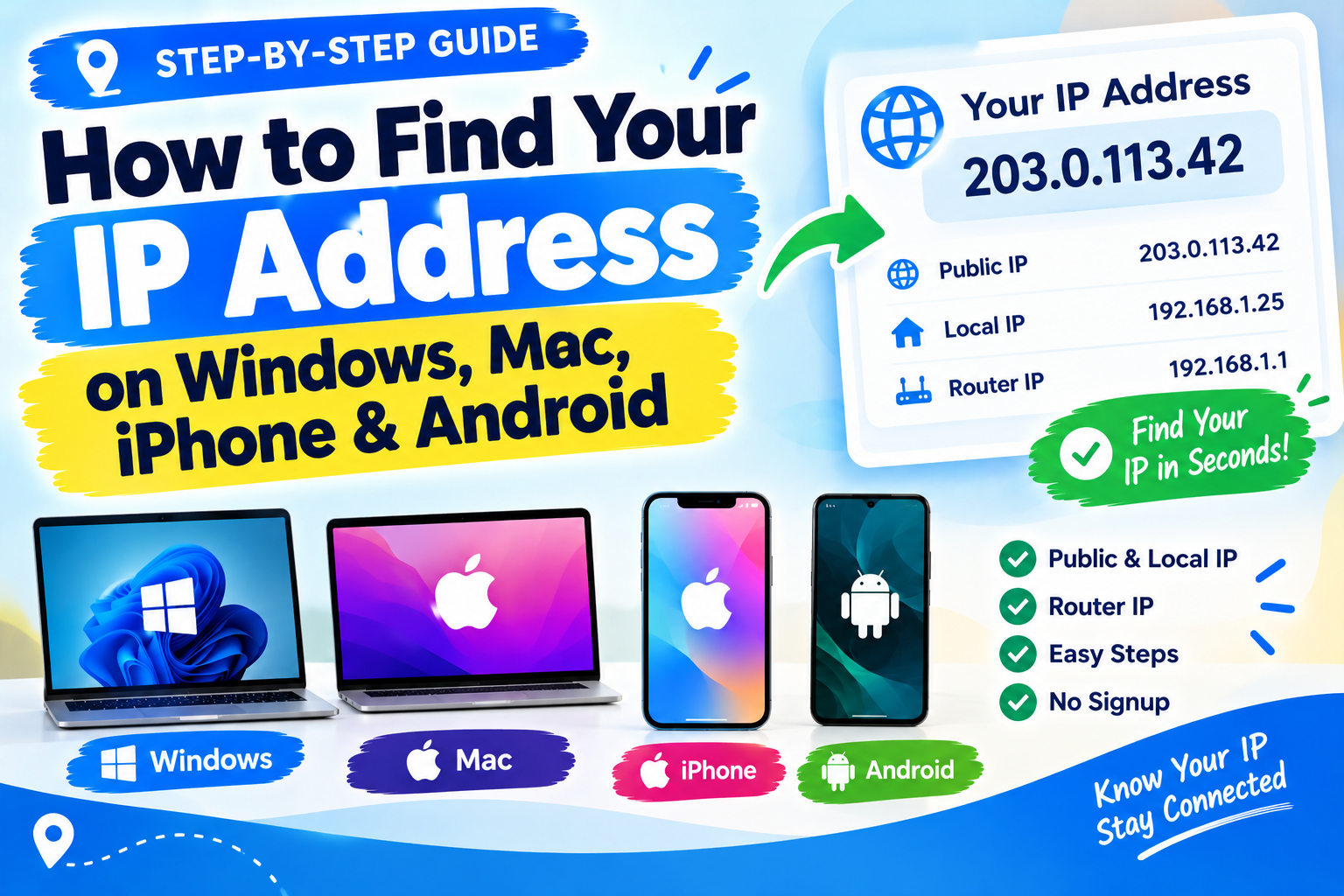
The fastest method is to use TrendPro's free IP Address Checker:
Check Your Public IP Address Now →
Your public IP address is the address websites and online services generally see when you connect to the internet. Your local IP address identifies your device within your Wi-Fi or office network.
You can find your local IP address without installing an app or using Command Prompt. The exact steps depend on your device.
In this guide, you will learn how to find your IP address on:
- Windows 11 and Windows 10
- MacBook and iMac
- iPhone and iPad
- Android phones and tablets
- Your Wi-Fi router
Public IP vs Local IP Address: What's the Difference?
Before following the instructions, it helps to understand which address you need.
| Feature | Public IP address | Local IP address |
|---|---|---|
| Main purpose | Identifies your internet connection to external services | Identifies your device on a local network |
| Assigned by | Usually your internet service provider | Usually your router or network's DHCP server |
| Example IPv4 | 203.0.113.42 | 192.168.1.25 |
| Visible to websites | Generally yes | Generally no |
| Used for | Internet connectivity and public connections | Connecting to local devices and network troubleshooting |
The addresses in this table are examples. The public IPv4 example uses a range reserved for documentation.
What Is a Public IP Address?
A public IP address is the address remote websites and services generally see when your device connects to the internet.
On a typical home network, your internet provider assigns a public address to your router. Your phone, laptop, smart TV, and other connected devices may share that public IPv4 address because the router uses Network Address Translation (NAT).
If you use a VPN or proxy, the public address seen by a website may belong to that service instead of your normal internet connection.
What Is a Local IP Address?
A local IP address is used to communicate within your home, school, or office network.
Common private IPv4 addresses begin with:
192.168.10.172.16.through172.31.
For example, your laptop might have the local IP address 192.168.1.25, while your phone has 192.168.1.26.
These addresses can be reused on different private networks. They do not need to be globally unique.
For more information, see the Internet Assigned Numbers Authority's private-address guide.
How to Find Your IP Address on Windows 11
You can find your local IP address through Windows Settings or Command Prompt. The Settings method is easier if you do not want to use commands.
Method 1: Use Windows Settings
Follow these steps:
- Press Windows + I to open Settings.
- Select Network & internet.
- Select Wi-Fi if you are connected wirelessly, or Ethernet if you use a network cable.
- Open the properties of your active network connection.
- Find the IPv4 address entry.
Your local IPv4 address should appear next to that label. If your network supports IPv6, you may also see an IPv6 address.
Example: If the IPv4 address is 192.168.1.25, that is your local address on the current network.
The exact layout can vary slightly with Windows updates and network adapters.
Method 2: Find Your IP Using Command Prompt
The Windows ipconfig command displays network configuration details, including IP addresses and the default gateway.
-
Open the Start menu.
-
Type
cmd. -
Open Command Prompt.
-
Enter the following command:
ipconfig
-
Press Enter.
-
Find the active Wi-Fi or Ethernet adapter.
-
Look for IPv4 Address.
You may see output similar to this:
Wireless LAN adapter Wi-Fi:

   IPv4 Address. . . . . . . . . . : 192.168.1.25
   Subnet Mask . . . . . . . . . . : 255.255.255.0
   Default Gateway . . . . . . . . : 192.168.1.1
These values are examples.
The IPv4 Address is your device's local IPv4 address. The Default Gateway is usually your router's local address.
You may see several adapters, including VPN, virtual machine, Bluetooth, or disconnected network adapters. Check the adapter you are actually using.
For Microsoft's official explanation, see the Windows ipconfig command reference.
How to Find Your Public IP on Windows
The ipconfig command normally shows your local network configuration, not the public address that a website sees.
To check your public IP:
- Open your browser.
- Visit TrendPro's IP Address Checker.
- View the public IP address reported by the tool.
You do not need to install software or open Command Prompt.
How to Find Your IP Address on a Mac
If you use a MacBook, iMac, or another macOS computer, you can find your local IP address through System Settings.
Method 1: Use System Settings
- Click the Apple menu in the top-left corner.
- Open System Settings.
- Select Network.
- Choose your active connection, such as Wi-Fi or Ethernet.
- Open the connection details if necessary.
- Find the IP address in the connection information.
The precise layout depends on your macOS version. On some versions, you can open Details next to the active Wi-Fi network to see more information.
If your Mac is connected to Wi-Fi, make sure you check the Wi-Fi connection rather than an inactive Ethernet adapter.
Method 2: Find Your Mac's IP Using Terminal
If you prefer the command line, open Terminal and run:
ipconfig getifaddr en0
On many Macs, en0 is the Wi-Fi interface, but interface names can vary. If the command returns no address, check the active network interface in System Settings.
You can also use:
ifconfig
This displays details for multiple network interfaces, so you may need to identify the active one.
How to Find Your Public IP on a Mac
To find your public IP address, open a browser and visit:
The address reported by the website may differ from the local IP displayed in System Settings. That is normal on most home networks.
How to Find Your IP Address on an iPhone
If you want to find your iPhone's local IP address while connected to Wi-Fi, you can do it directly in Settings.
Steps to Find Your iPhone's Local IP
- Open Settings.
- Tap Wi-Fi.
- Find the Wi-Fi network you are currently connected to.
- Tap the information icon (ⓘ) next to the network.
- Look for the IPv4 Address section.
- Read the IP Address field.
Your local address may look like 192.168.1.30.
The same screen may show additional details, including the subnet mask, router address, and IPv6 information.
If you are connected to a different Wi-Fi network, the local IP address will usually be different.
How to Find Your iPhone's Public IP Address
The Wi-Fi settings screen shows information about your local network connection. It does not normally show the public IP address that an internet service sees.
To check your public IP:
- Open Safari or another browser.
- Visit TrendPro's IP Address Checker.
- Read the displayed public IP address.
If you use a VPN, the website may show the VPN server's public IP rather than the address your connection would normally use.
What About Mobile Data?
When your iPhone uses cellular data instead of Wi-Fi, the network details shown for a Wi-Fi connection do not represent the cellular connection.
Mobile carriers can use carrier-grade NAT, so the address assigned internally to your phone may not be a publicly reachable IPv4 address.
The simplest way to see the public address used by your current connection is to open the IP checker while connected to that network.
How to Find Your IP Address on Android
Android menus vary between manufacturers, so the exact wording may differ on Samsung Galaxy, Google Pixel, Xiaomi, Redmi, Oppo, and other phones.
The following steps work as a general guide.
Method 1: Check Your Wi-Fi Network Details
- Open Settings.
- Select Network & internet, Connections, or the equivalent option on your phone.
- Tap Internet or Wi-Fi.
- Select the Wi-Fi network you are currently connected to.
- Open its details or network information.
- Look for IP address.
Your local IP may look like 192.168.1.35.
On some Android versions, you may need to tap the gear icon beside the connected network. Other devices place network details under Advanced.
Method 2: Check the Phone's Status Information
Some Android devices provide IP information through the phone's status screen.
- Open Settings.
- Select About phone.
- Look for Status, Status information, or a similar option.
- Find the IP address information if it is available.
Not every manufacturer displays the same fields in this location. If you cannot find the address, use the Wi-Fi network details method instead.
How to Find Your Public IP on Android
To find the public IP address used by your Android phone:
- Open Chrome or your preferred browser.
- Visit TrendPro's IP Address Checker.
- Check the address displayed.
For a fair comparison, make sure you know whether your phone is using Wi-Fi, mobile data, or a VPN.
How to Find Your Router's IP Address
Your router has a local address used by devices on your network to communicate with it. This is usually called the default gateway.
You may need it to open your router's administration page, troubleshoot Wi-Fi, or change network settings.
Common router addresses include:
192.168.1.1192.168.0.110.0.0.1192.168.1.254
These are common examples, not guaranteed addresses. Your router may use a different one.
Find Your Router's IP on Windows
- Open Command Prompt.
- Type
ipconfig. - Press Enter.
- Find your active Wi-Fi or Ethernet adapter.
- Read the Default Gateway value.
For example, if the Default Gateway is 192.168.1.1, that is usually the router's local address.
Find Your Router's IP on a Mac
You can usually find it in the active network's details under System Settings > Network.
Alternatively, open Terminal and run:
route -n get default
Look for the line labeled gateway.
Find Your Router's IP on an iPhone
- Open Settings.
- Tap Wi-Fi.
- Tap the information icon next to your connected network.
- Find the Router field.
The value shown is the router's local address for that network.
Find Your Router's IP on Android
- Open Settings.
- Go to Wi-Fi or Internet settings.
- Open the connected network's details.
- Look for Gateway, Router, or a similar field.
The menu depends on the Android version and manufacturer.
Router IP vs Public IP: Are They the Same?
Not usually.
Your router typically has a private address on the local network and a separate WAN or internet-facing address. Websites see the public address used by your internet connection.
To check the public address, use the IP Address Checker.
Public IP vs Private IP: Which One Should You Find?
The right address depends on what you are trying to do.
| Your task | Address you usually need |
|---|---|
| Check what IP a website sees | Public IP |
| Connect to a printer on your Wi-Fi | Local IP |
| Troubleshoot a Windows network connection | Local IP and default gateway |
| Open your router's settings | Router's local IP |
| Configure a local device or service | Usually local IP |
| Check a VPN connection | Public IP reported while the VPN is active |
| Set up an external server connection | Public IP, plus any necessary firewall and router configuration |
For example, if your laptop has a local IP of 192.168.1.25 and your router uses 192.168.1.1, those addresses identify devices inside your local network.
Your public IP is a separate address used for internet communication.
One important exception is IPv6: depending on your network, your device may have a globally routable IPv6 address in addition to local addresses. The public-versus-private distinction is therefore not always as simple as comparing two IPv4 addresses.
Why Does My IP Address Change?
It is normal for an IP address to change. The reason depends on which address you are checking.
1. Your Internet Provider Uses Dynamic IP Addresses
Many internet providers assign public IP addresses dynamically.
Your address may change when a lease expires, your connection reconnects, your modem or router restarts, or your provider changes its network configuration.
Some customers have static IP addresses, which are intended to remain fixed. Availability depends on the provider and service plan.
2. You Connect to a Different Wi-Fi Network
Your local IP address usually changes when you connect to another network.
For example, your laptop may have 192.168.1.25 at home and 192.168.0.42 at work.
That is expected because each network can use a different private address range.
3. You Switch Between Wi-Fi and Mobile Data
Your phone uses a different network path when you switch from Wi-Fi to cellular data.
As a result, the public IP reported by a website may change.
4. You Use a VPN or Proxy
A VPN routes your internet traffic through another server. Websites will generally see the VPN server's public IP instead of your ordinary public IP.
Changing VPN servers can change the address reported by websites.
5. Your Router Assigns a New Local Address
Your router typically uses DHCP to assign local IP addresses to connected devices.
A device may receive a different address after reconnecting or after its DHCP lease changes. Some routers and devices support DHCP reservations to keep a device on the same local address.
Can Someone Find Your Location From Your IP Address?
An IP address can reveal some network-related information, such as the internet provider or an approximate geographic region.
However, IP-based location is not the same as GPS location. It generally cannot reliably identify your exact home address or precise physical position by itself.
The accuracy depends on the address, provider, database, network configuration, and whether a VPN or proxy is in use.
For privacy:
- Avoid publishing your public IP unnecessarily.
- Use trusted networks and keep your router updated.
- Use a reputable VPN when it fits your privacy needs.
- Remember that a VPN does not make you completely anonymous.
- Do not share screenshots of network settings if they expose details you would prefer to keep private.
A local IP such as 192.168.1.25 is normally meaningful only within your local network and is not a globally unique internet address.
Troubleshooting: Why Can't I Find My IP Address?
If the address is missing or looks unexpected, try these checks.
You see several IP addresses
Your computer may have multiple adapters, including Wi-Fi, Ethernet, VPN, virtual machines, and IPv6 interfaces.
Choose the adapter that corresponds to your active connection.
Your IP starts with 169.254
An IPv4 address in the 169.254.x.x range can indicate that your device assigned itself a link-local address because it did not obtain a normal IPv4 address from DHCP.
Check whether the router is working, reconnect to the network, and try renewing the connection.
On Windows, you can try:
ipconfig /release
ipconfig /renew
Use these commands only when appropriate for your network connection. They temporarily release and request network configuration.
Your public IP differs from your router's WAN address
Your provider may use carrier-grade NAT, or your network may have another router or gateway between your router and the internet.
In this situation, the public IP seen by a website may differ from the WAN address shown in your router's settings.
This does not automatically mean your internet connection is broken.
The IP checker shows a different address when you use a VPN
That is expected if your internet traffic is passing through the VPN.
To compare addresses, check once with the VPN enabled and once with it disabled, provided you are comfortable doing so.
Frequently Asked Questions
What is the difference between a public and a local IP address?
A public IP address is the address remote internet services generally see when you connect. A local IP address identifies your device within a private network, such as your home Wi-Fi. Many devices share one public IPv4 address through a router using Network Address Translation.
How do I find my IP without using Command Prompt?
On Windows 11, open Settings > Network & internet, select your active Wi-Fi or Ethernet connection, and look for IPv4 address. On a Mac, open System Settings > Network. On an iPhone, go to Settings > Wi-Fi and tap the information icon beside the connected network. On Android, open your connected Wi-Fi network's details.
Why does my IP address change?
Your IP address can change when your internet provider assigns a new public address, you connect to another Wi-Fi network, you switch from Wi-Fi to mobile data, or you use a different VPN server. Local addresses may also change when your router assigns a new DHCP lease.
What is the ipconfig command?
The Windows ipconfig command displays TCP/IP network configuration details, including IPv4 and IPv6 addresses and the default gateway. Enter ipconfig in Command Prompt to view the information for your network adapters.
Is my router's IP address the same as my public IP?
Usually not. Your router normally has a private local address used as the default gateway, as well as a WAN address facing the internet. The WAN address may be private or shared when your provider uses carrier-grade NAT.
Can I find my IP address on a phone using mobile data?
Yes. Open an IP-checking website in your phone's browser while mobile data is enabled. The website reports the public IP used for that connection. The carrier may use carrier-grade NAT, so this address may not be directly assigned to your phone.
Does my IP address reveal my exact location?
Not reliably. IP-based location tools may estimate your country, region, or city, but their results can be inaccurate. An IP address alone generally does not reveal your precise GPS location or exact home address.
Final Thoughts
Finding your IP address is easy once you know whether you need your public IP, local IP, or router address.
- Windows: Use Settings or the
ipconfigcommand. - Mac: Open System Settings > Network.
- iPhone: Open Settings > Wi-Fi and tap the information icon.
- Android: Open the connected Wi-Fi network's details.
- Public IP on any device: Use an online IP checker.
- Router address: Look for Default Gateway or Router in your network settings.
For the quickest way to check the public address your current connection uses, visit TrendPro's free IP Address Checker.
No signup is required to get started.